GUEST
Digital Reservations and Validations
About the Technology
Precise ParkLink’s Guest platform is a browser-based online validations tool that gives parking operations managers the flexibility to create and distribute validations to their guests.
Our Research and Development department leveraged its experience integrating with Skidata systems to respond to demand from commercial real estate owners, hotels, convention centres, and other event-based parking operations. And as client needs continue to evolve, so too does the platform, with new capabilities always being added.
The Guest suite offers authorized users an intuitive interface where validation parameters are selected from drop-down menus; to simplify the user experience further, the suite is preprogrammed with only the discount types offered at the site, including percentage, amount, or time, or an alternate rate structure entirely. Once the parameters are set, the user clicks “Submit” to generate a QR code that can be read by the external barcode readers fitted to the Skidata entry and exit terminals, as well as by the automatic and manual pay stations.
Validations can be created in two ways: Add Guest creates a single validation for a single individual, and Add Event creates a series of validations to be distributed to a group of individuals. In both cases, Guest will forward the parker’s QR code to their email address to be read at entry and exit terminals’ barcode scanners.
For both Add Guest and Add Event, the interface lets authorized users set a number of parameters for the validations; for many parkers, this may simply mean a discounted exit ticket at the end of an event at a performance venue, but the system is flexible enough to offer parkers, for example, in-and-out privileges over a date range. In the latter case, each time the parker enters or exits the facility, they need only scan their validation coupon, whether printed or displayed directly from their smartphone, at the terminal to vend the gate.
Each transaction against a QR code can be viewed directly in Guest for tracking purposes and exported in .csv and .xls formats to satisfy reporting requirements. The validations themselves can also be viewed and edited, such as to update an email address and resend the QR code, or to change the privileges associated with it. As with most tools of this nature, Guest keeps a log of the changes made and by whom.
The Add Event function gives authorized users the same functionality as Add Guest but with the option to specify a folio number for department chargebacks for multiple validations. And with the ability to track the number of validations used rather than simply the number of those created, accurate chargebacks to the hosting department or external organization are always guaranteed. Restaurants, gyms, salons, and other services commonly located in hotels can, as part of their lease agreements, offer a certain number of validated parking sessions to attract new clients with accurate chargebacks to their accounts.
Development of the Guest platform is ongoing, even while it’s being deployed. Our Research and Development engineers are currently working to build tiered levels of administrator permissions as well as historical reporting capabilities, all of which will become available to your facility’s management as they go online.
Precise ParkLink’s own in-house Research and Development team developed the Guest validation module to give our clients and their customers a more premium experience when parking their vehicles.
Based on our experience working with commercial, residential, and mixed-use developments and in direct response to feedback we’ve received, Guest is an opportunity for our clients to stay ahead of trends in customer demand by remaining agile in the face of evolving requirements.
Authorized users of your site’s Guest platform have access to a great deal of functionality: adding guests and creating new events, viewing existing reservations and events, managing authorized user access and facility configuration, as well as reporting processes.
LOGIN SCREEN
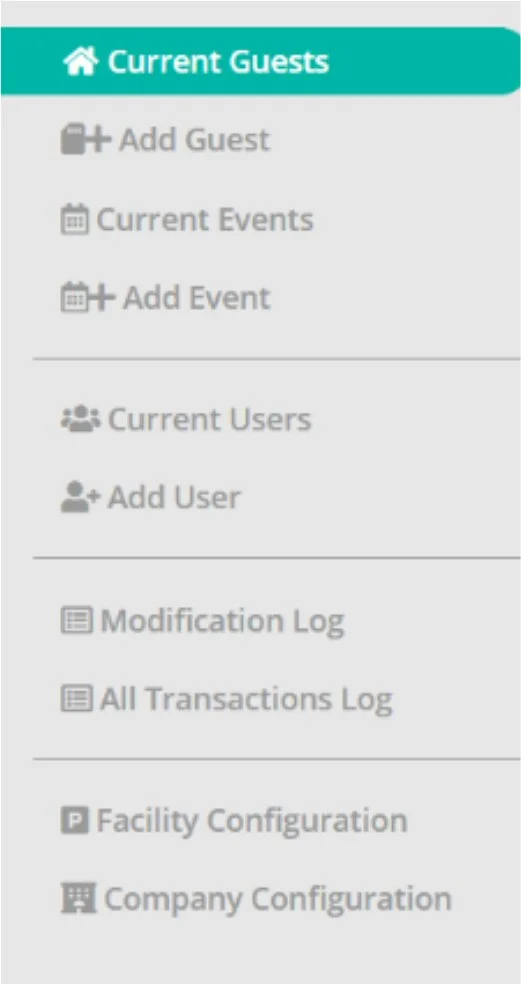
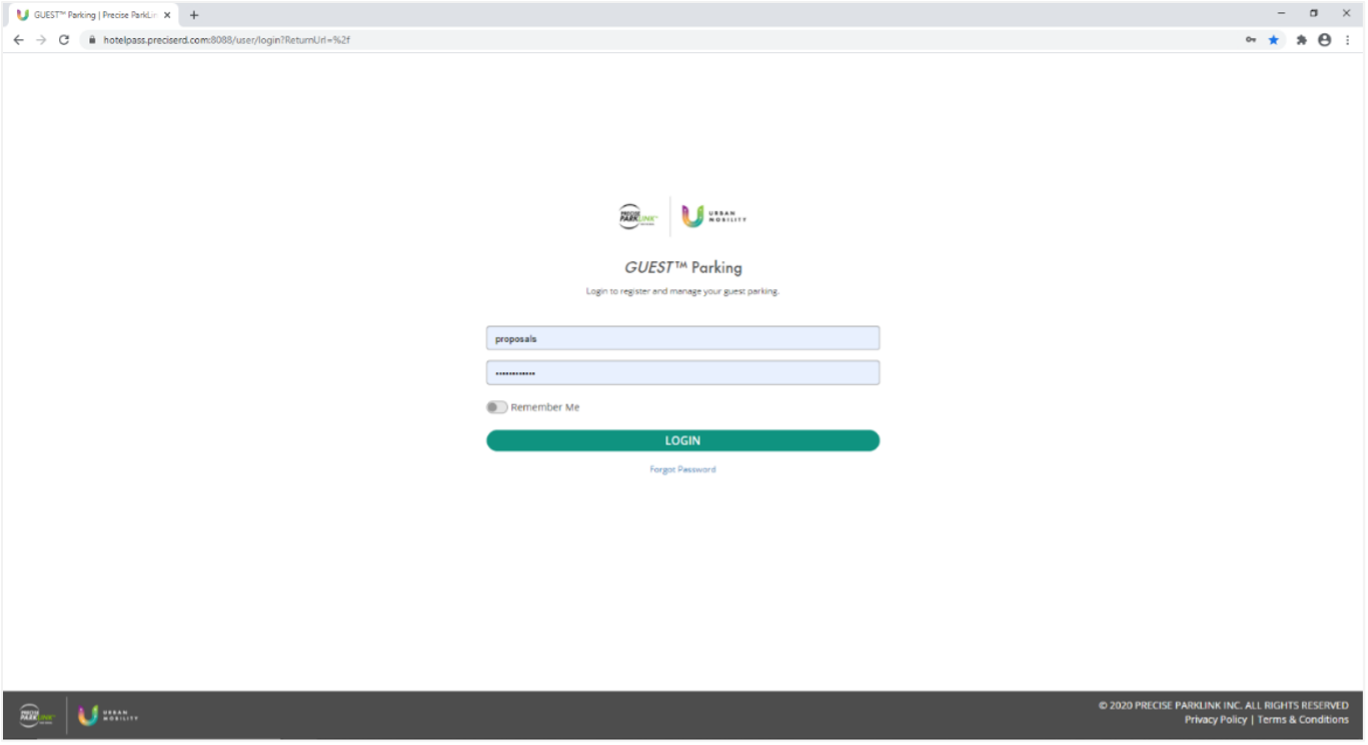
Our engineers designed the Guest platform to be as straightforward and intuitive to use as possible, from the familiar-looking navigation pane above to the standard login screen below.
Users will enter their login credentials, as assigned to them by their administrator, to access the functionality they are entitled to use. By default, new users can access event and guest information only, and administrators have access to all areas of the module, including configurations, reports, and user management.
ADD GUEST
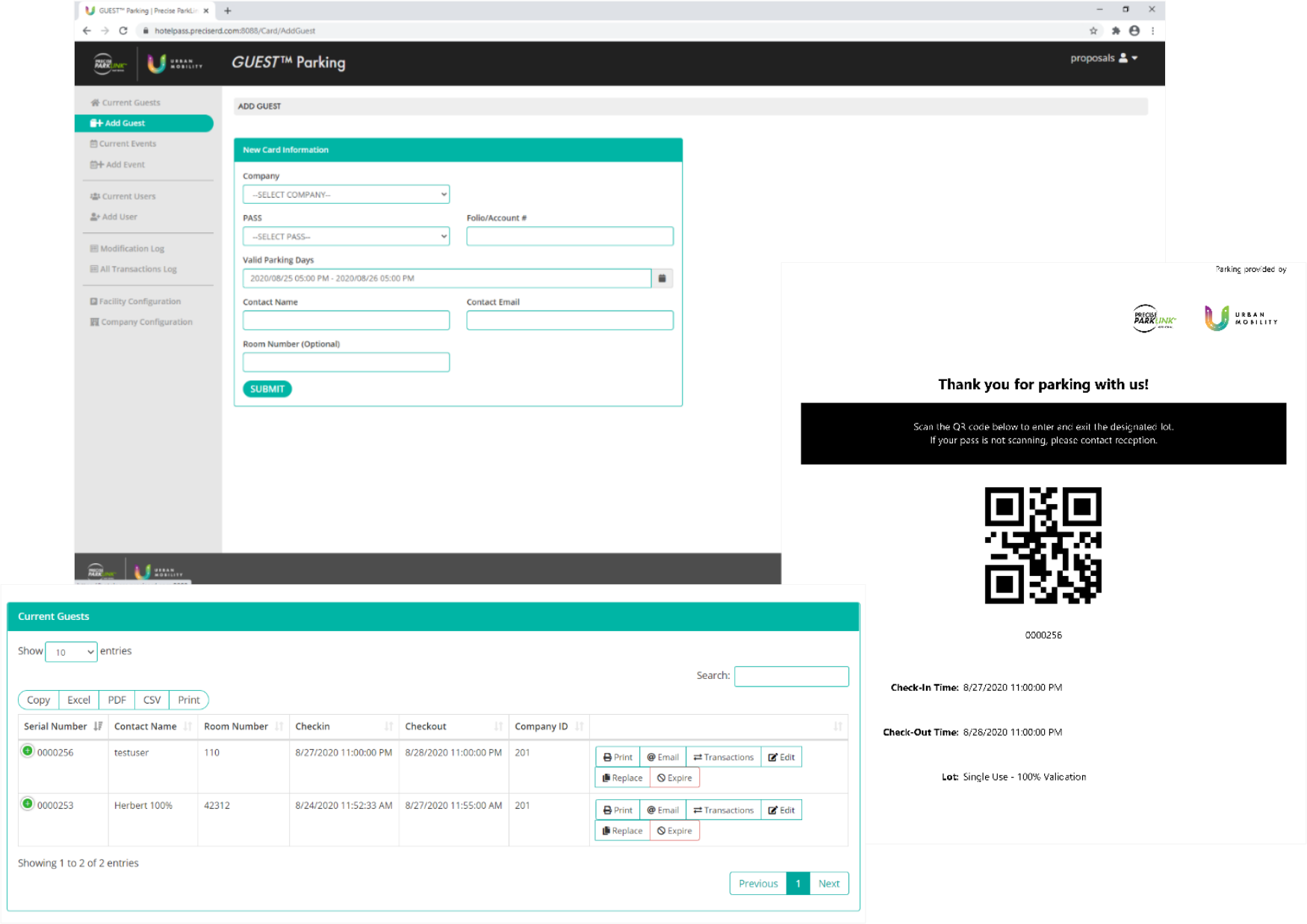
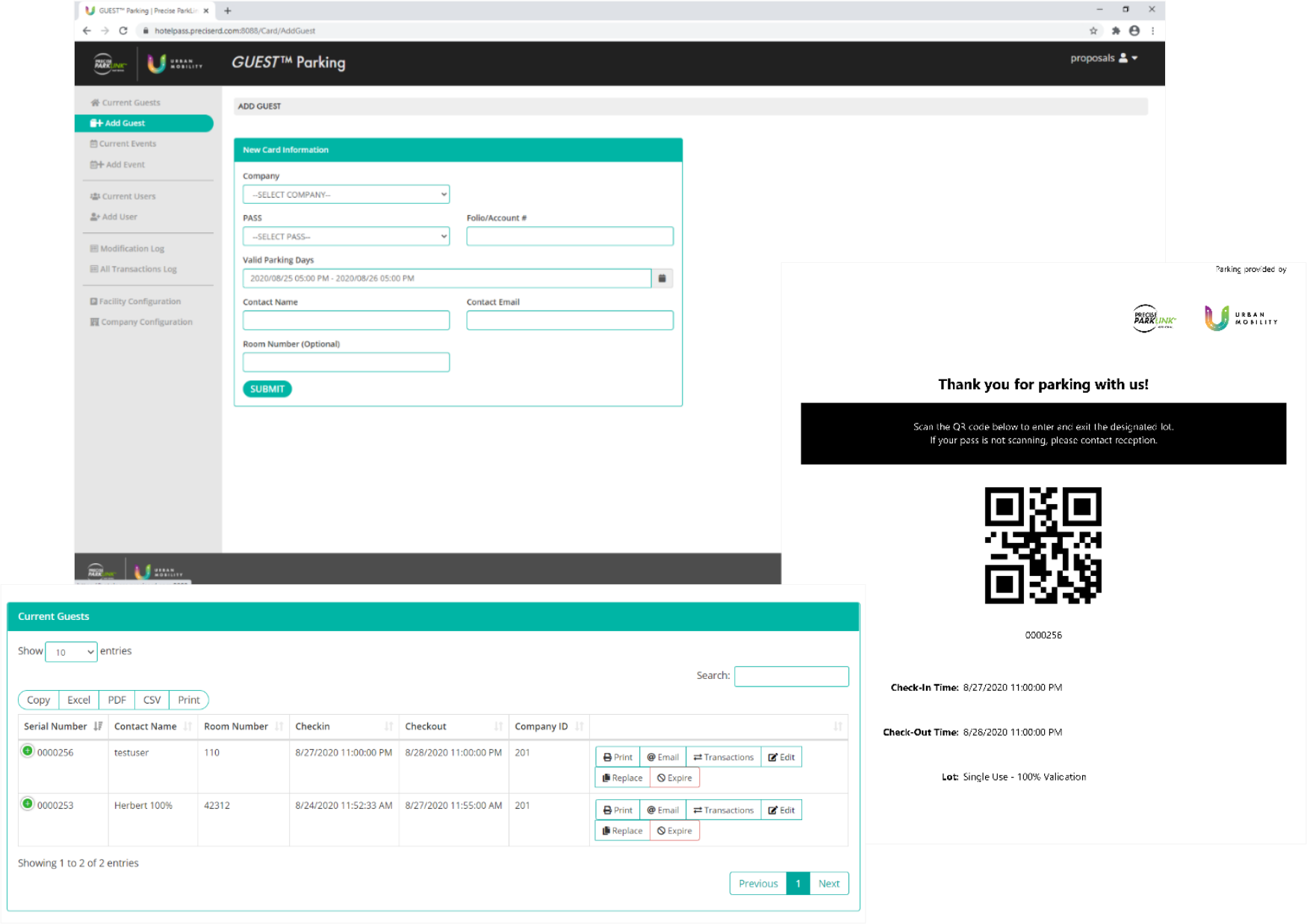
The Add Guest function allows authorized users — such as a manager, designated staff member, or system administrator — to produce a variety of validation types based on the site parameters preprogrammed into the module by our engineers.
Using a series of drop-down menus, the user will select the necessary parameters for the validation:
Company name
Type of pass (e.g., rebate percentage, in/out privileges, etc.)
Account number
Validation duration (i.e., date and time range)
Once these parameters are set, the user will enter the guest’s name and contact email address, and optionally for hotel and residential clients, an associated room number.
The completed validation is automatically sent to the guest in PDF format via the registered email address and is immediately viewable on the Current Guests screen. The PDF your customer receives contains a QR code programmed with the check-in/out times, lot number, and any other parameters you’ve set.
Whether your customer chooses to print the PDF or display it directly on their smartphone, the QR code is scannable at Skidata entry and exit terminals and pay stations fitted with an external barcode reader to vend the barrier gate.
CURRENT GUEST
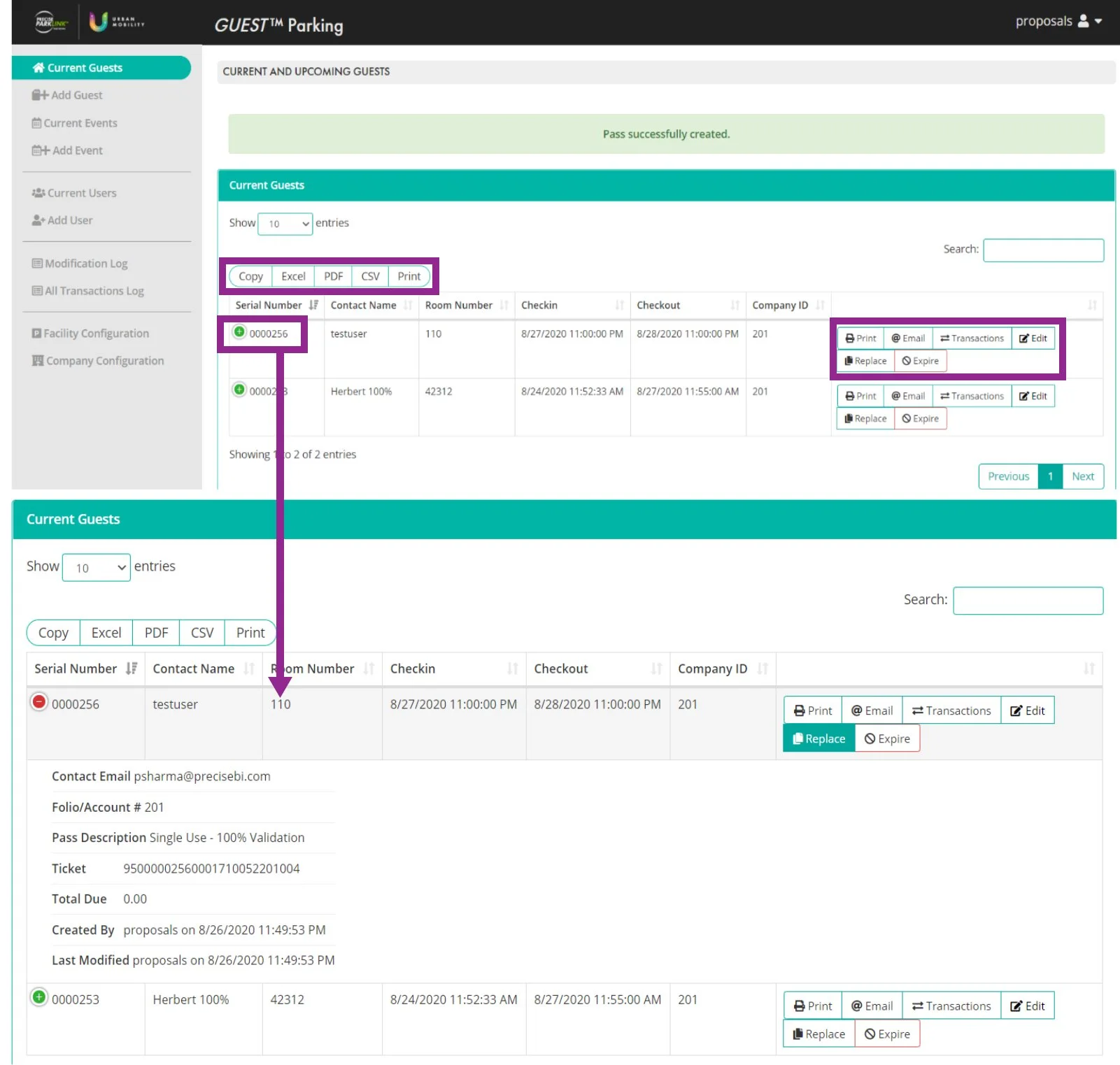
The Current Guests screen displays all current and upcoming — that is, not expired — validations. The screen is searchable and offers a number of quick functions for each validation:
Print validation and Email validation in the case the customer needs a new copy of the existing validation
Transactions lets the authorized user view the transactions already processed against that validation, such as in the case of how many times the in/out privilege has been used as the facility’s terminals
Edit the validation’s parameters, such as in the case of a hotel guest extending their stay
Replace to cancel the existing the validation and create a new one with the same parameters, such as with a corrected email address
Expire to cancel the validation and prevent its further use
The screen also offers a number of export options to aid in reporting: Copy, Excel, PDF, CSV, and Print.
ADD EVENT
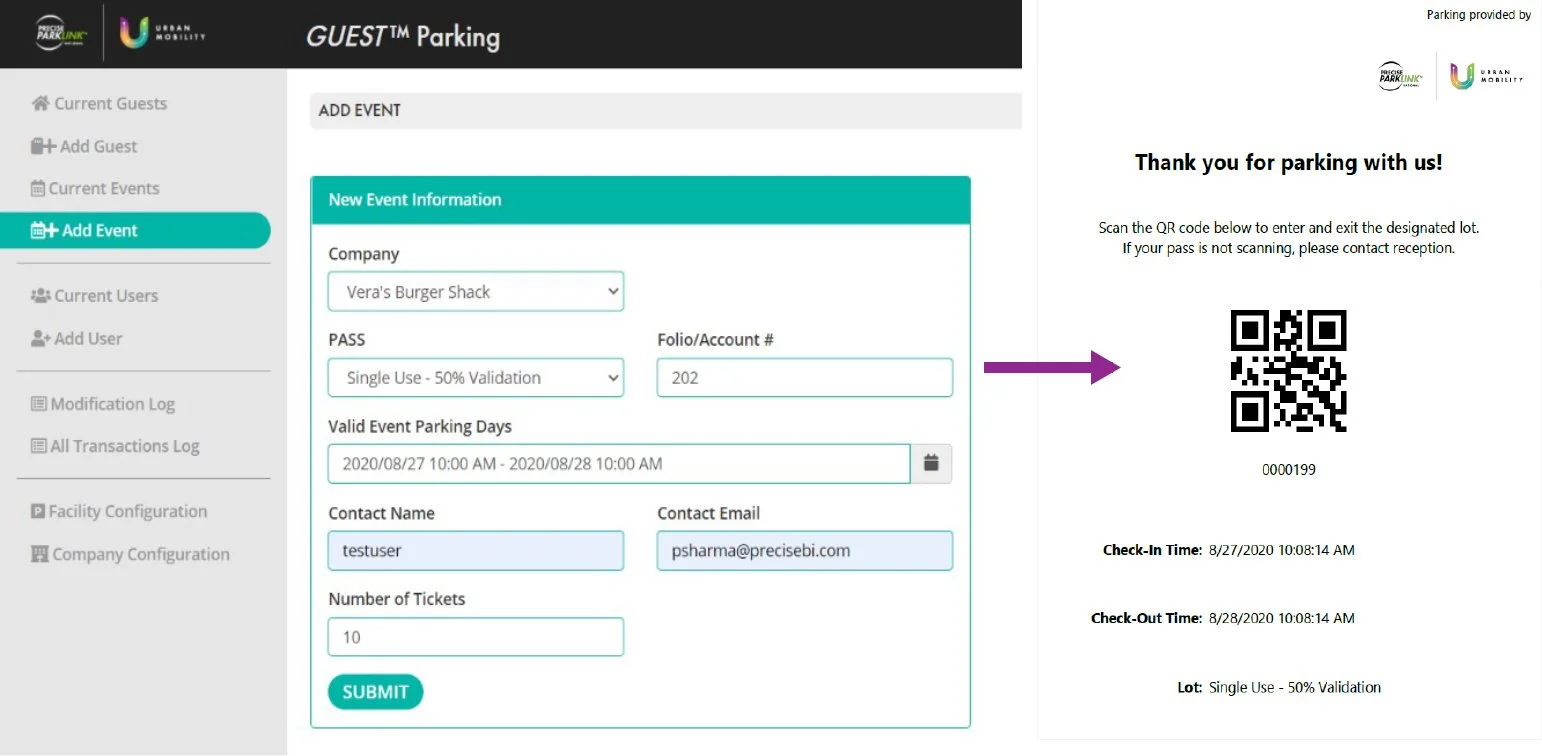
Guest’s Add Event function lets authorized users of the platform create validations in large batches for the purpose of distributing them either at or in advance of an event, often for promotional purposes.
Authorized users will select options in drop-down menus similar to those of the Add Guest function to set validation duration parameters, identify an account number for chargeback purposes, etc. The user will also enter the number of validations to be created and the email address to which they should be sent.
As with Add Guest, the PDF document Guest generates contains a QR code that can be scanned at Skidata’s entry and exit terminals and pay stations, and the sophisticated backend reporting system tracks the number of validations used from the batch.
CURRENT EVENTS
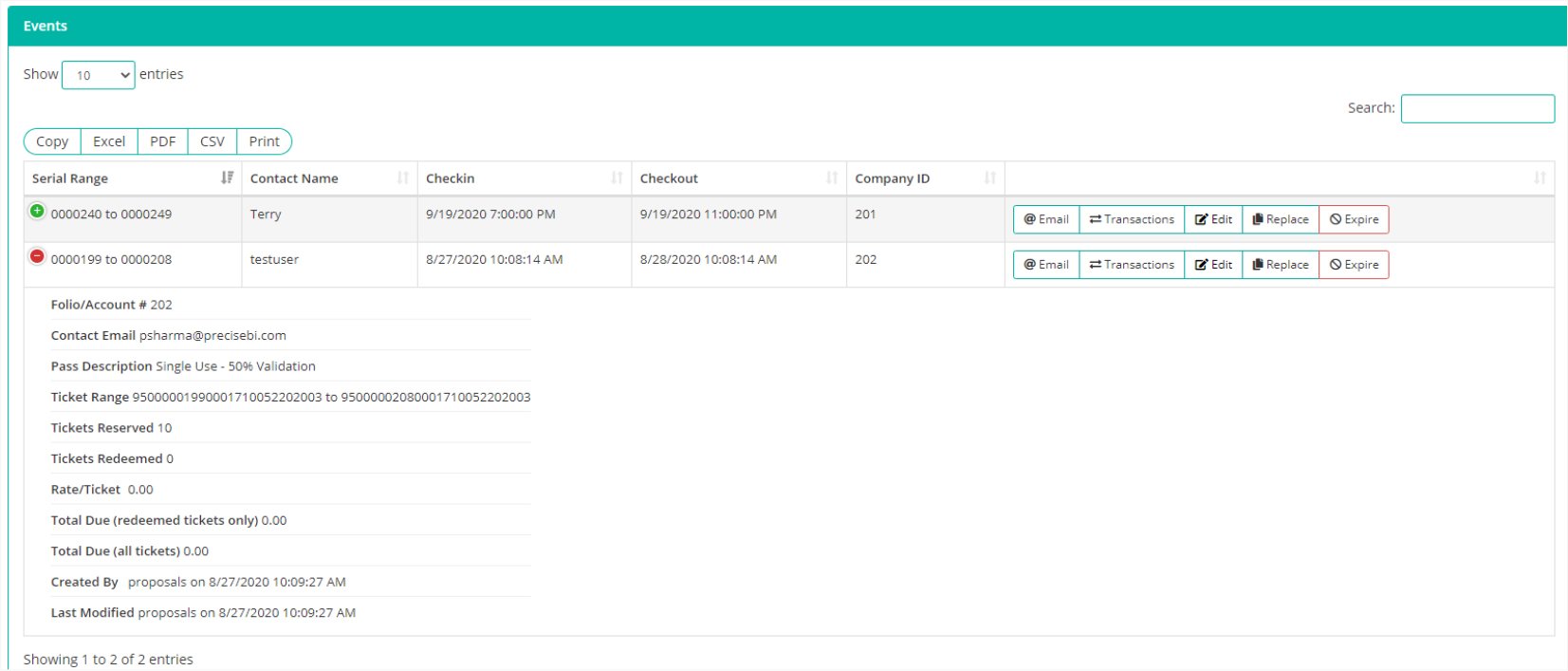
Once a batch of validations has been created, it is available to be viewed on the Current Events screen, from which is can be modified, replaced, expired, or exported with the same options as Current Guests.
ADD USER
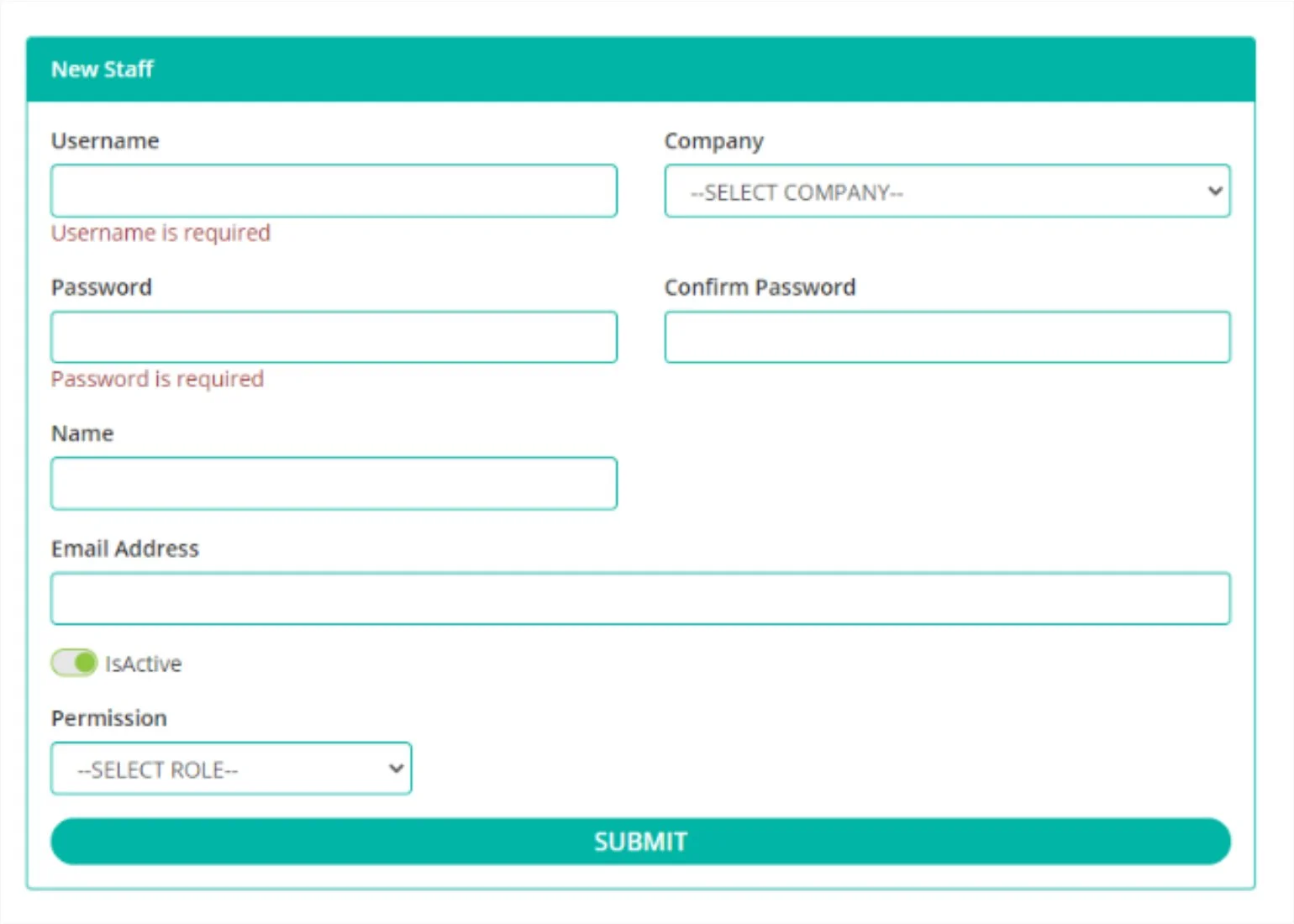
Your Precise ParkLink account administrator will take care of creating authorized users based on the parameters you request, including:
User name and password
Company (primarily intended for multi-tenant commercial purposes)
Name and email address
Permission
By assigning each user a role — for example, staff, administrator, manager, assistant manager — Guest applies a level of permission to that user account. Depending on your preferences, this may restrict staff to creating guests and events, managers having permission to run reports, and administrators to access and modify user accounts.
Once a user account has been created, their login credentials are forwarded to them automatically at the specified email address.
CURRENT USERS
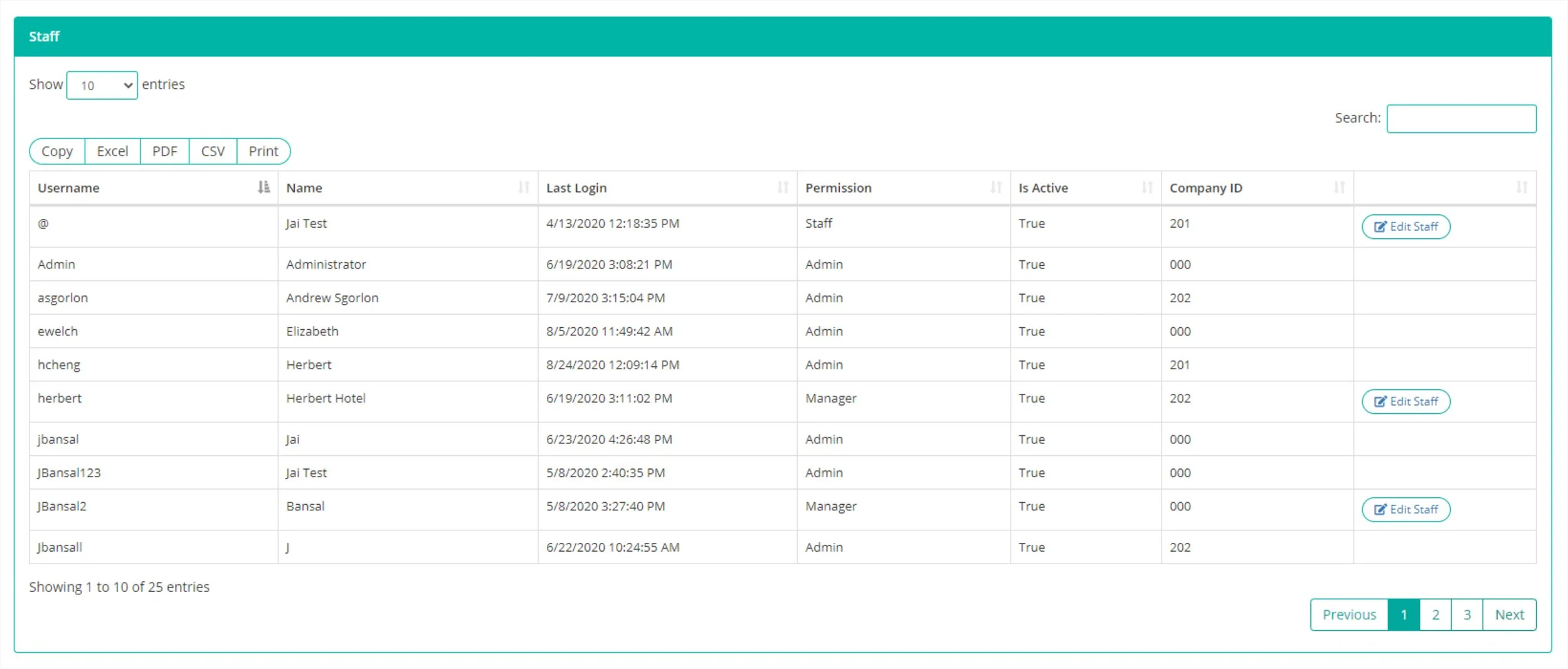
Authorized administrator users, as a function of their full access to the Guest platform, can manage other users at their facility via the Current Users screen.
MODIFICATION LOG
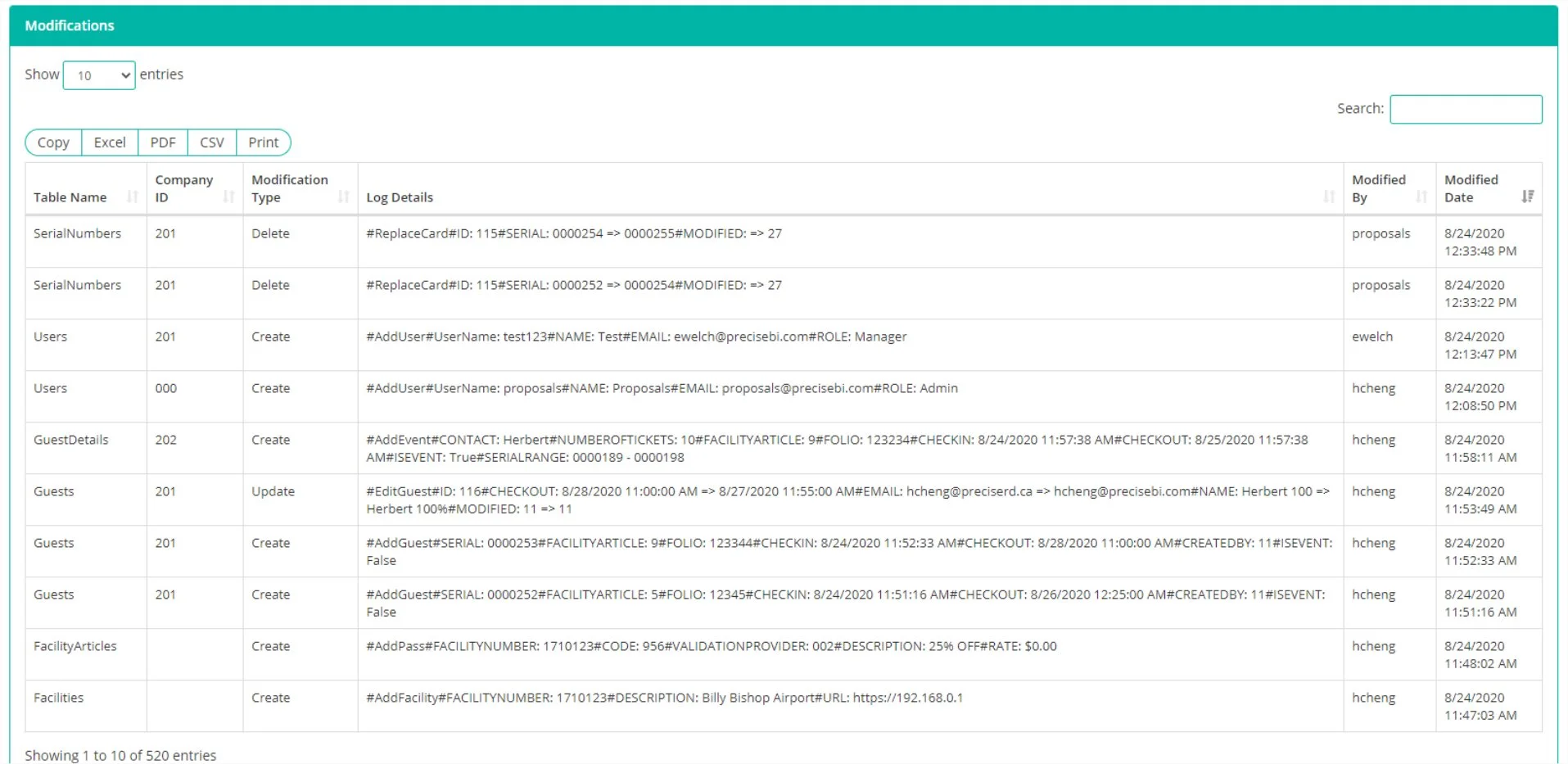
The modification log gives authorized users a view of all the changes made to guest profiles, event details, and user accounts. The log displays:
Modification impact (e.g., users, guest, event, facility)
Modification type (e.g., create, delete, update)
Affected company, if applicable
Authorized user making the modification
Date and time of the modification
Details of the modification
This function provides a detailed audit trail for transparent reporting as well as investigations by facility administrators.
ALL TRANSACTIONS LOG
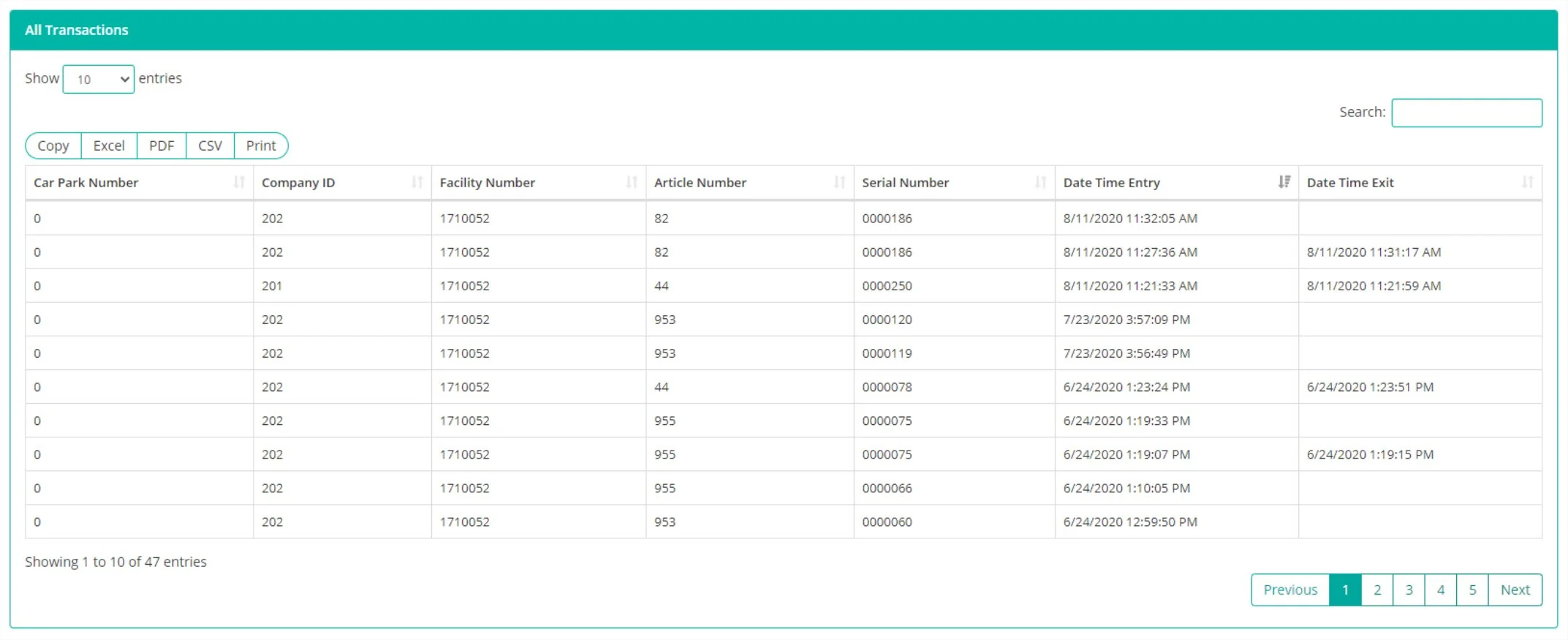
The All Transaction Log provides an overview of all the entries and exits recorded against existing reservations, such as in the case of customers having in/out privileges.
FACILITY CONFIGURATION
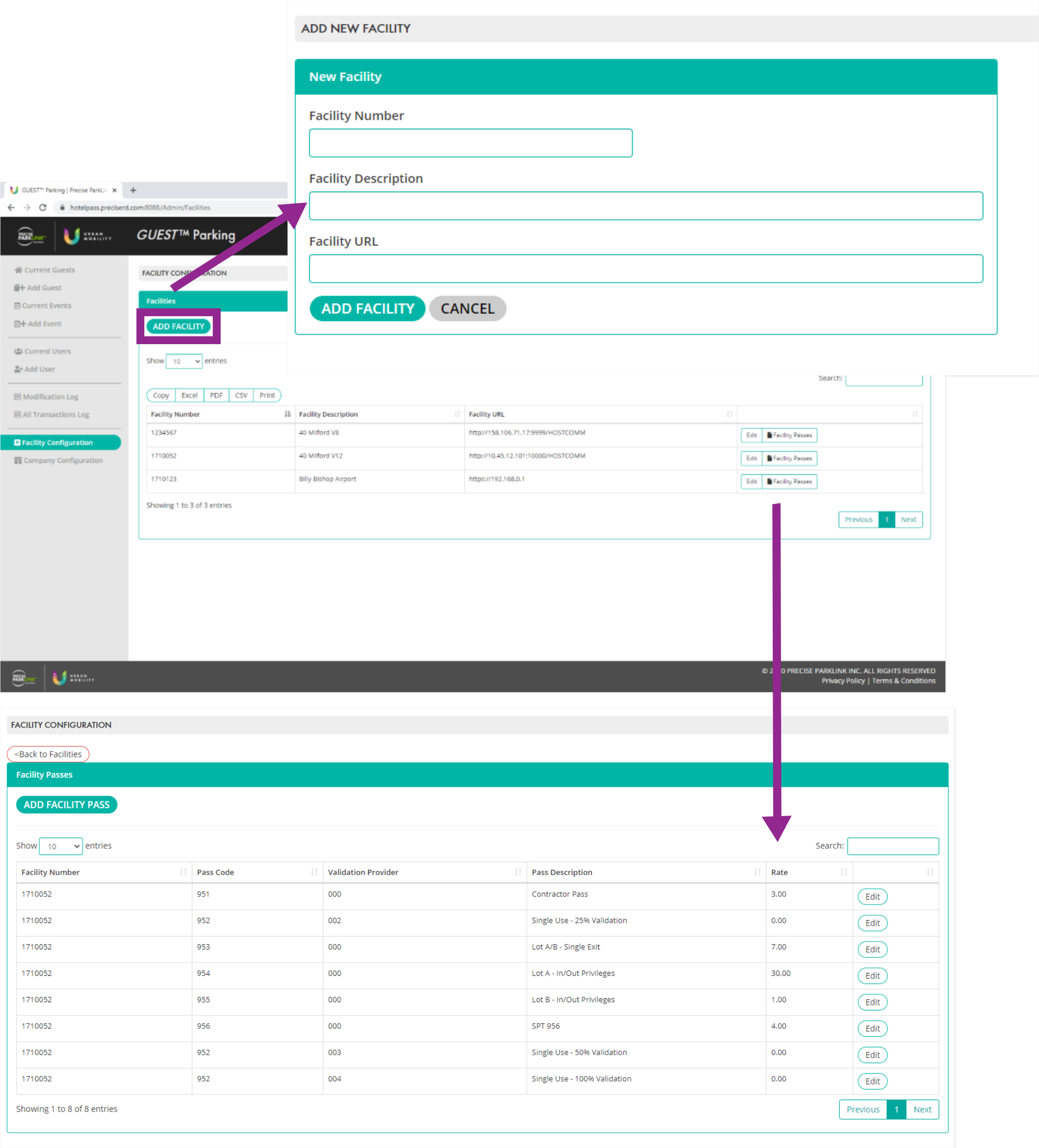
The Facility Configuration screen gives authorized administrative users, such as a store or restaurant manager, the ability to set up the rules that govern parking for their guests.
The “facility number” is the Skidata DAU associated with the physical parking lot customers will use; we have configured the Guest platform to allow multiple “facilities” to be created for a single physical lot so that commercial tenants can set rates and create passes according to their own business needs.
Once a facility has been set up, the facility administrator can create, update, and delete pass types and rate tables as needed.
COMPANY CONFIGURATION
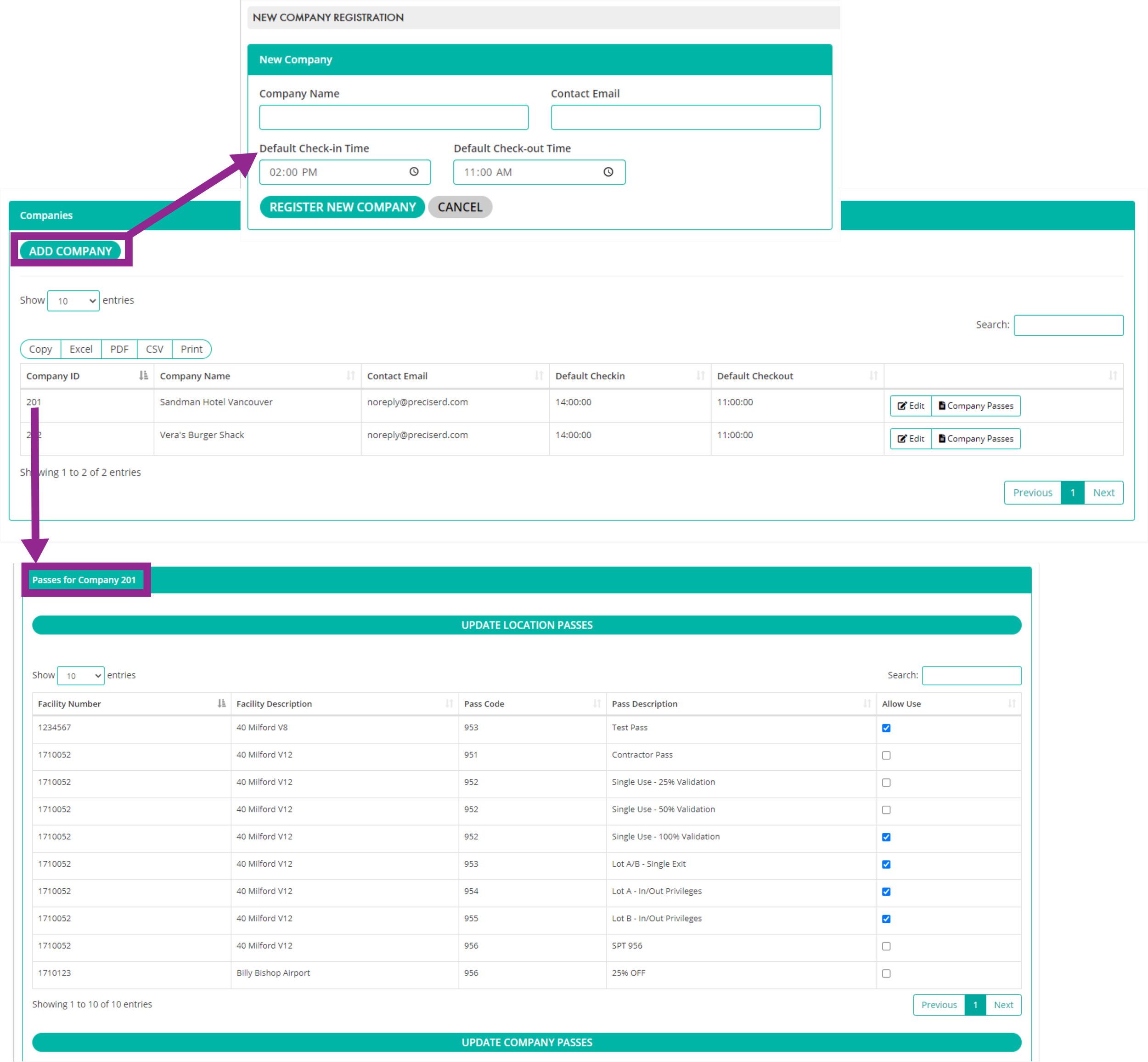
Authorized system administrators will assign each tenant in a commercial or mixed-use facility a unique Company ID via the Company Configuration screen. The administrator will also use this function to identify, from among the passes eligible to be created for the parking operation, which can be used by each individual company.
This Company ID will also be used as the account number in the Add Guest and Add Event screens to identify the tenant to which any validated parking fees or complimentary reserved parking costs should be charged back.